ATAK-CIV
Install ATAK-CIV (Civil Use) from the TAK Product Center listing on Google Play.
Get ATAK on Google Play ↗Android setup steps ↓TAK is the Team Awareness Kit: a shared map for teammate positions, useful markers, navigation, and messages. For our German side, it means a clearer picture and a team that moves together.
Install the app at home. Learn the basics here. We’ll help you join the team network at German HQ check-in.
One team.
Two ways onto the map.
Choose the app for your phone and install over Wi-Fi. You do not need to run a server or buy a DMR radio to install the phone app. Check the store’s current device requirements before the event.
Install ATAK-CIV (Civil Use) from the TAK Product Center listing on Google Play.
Get ATAK on Google Play ↗Android setup steps ↓Install iTAK from the United States Department of the Army, TAK Product Center listing on the App Store.
Get iTAK on the App Store ↗iPhone setup steps ↓Using Windows at HQ? WinTAK is a separate client available through the TAK Product Center. Most players should start with the app for their phone.
Real app screens.
A feel for the tools.
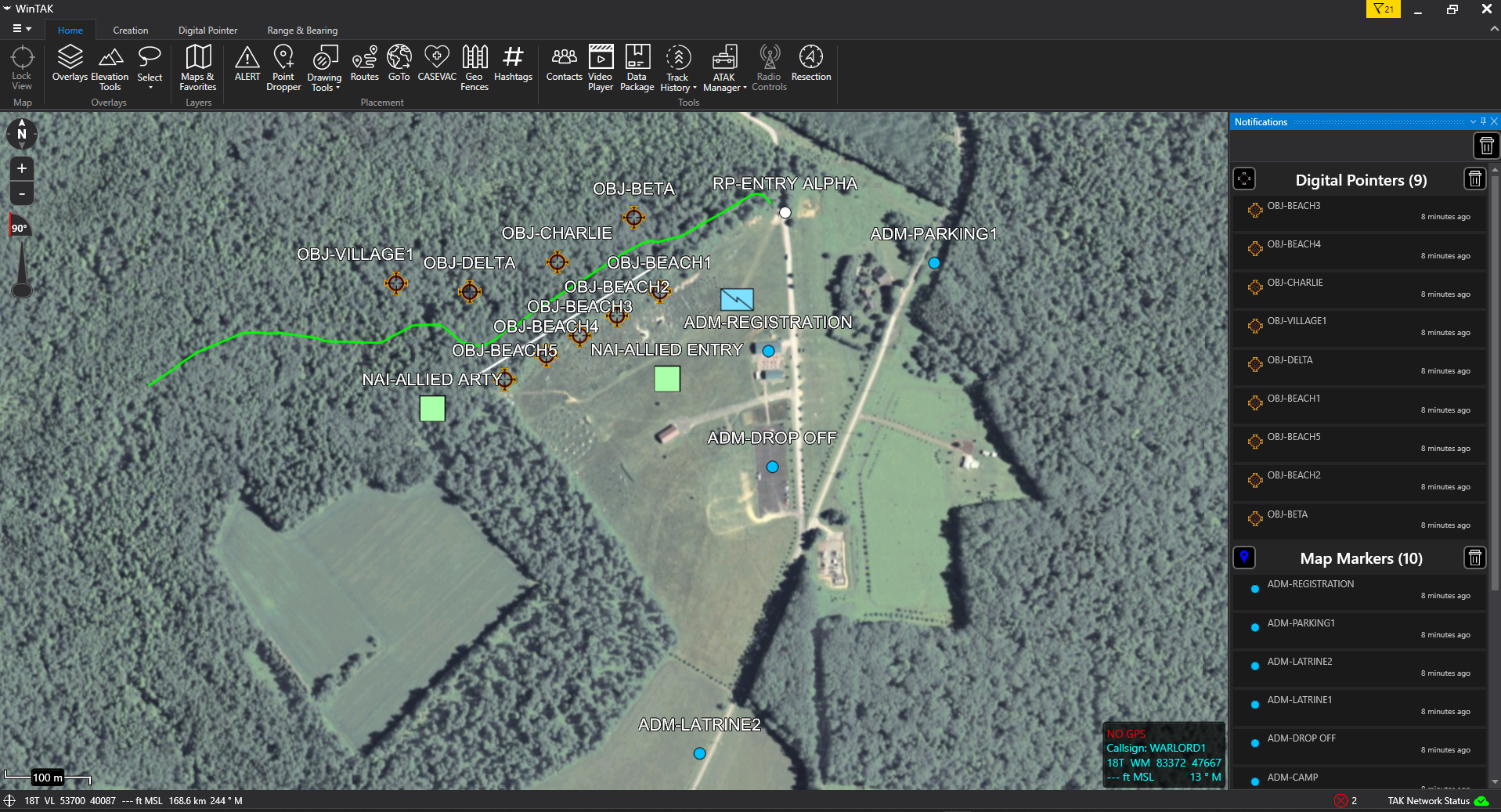
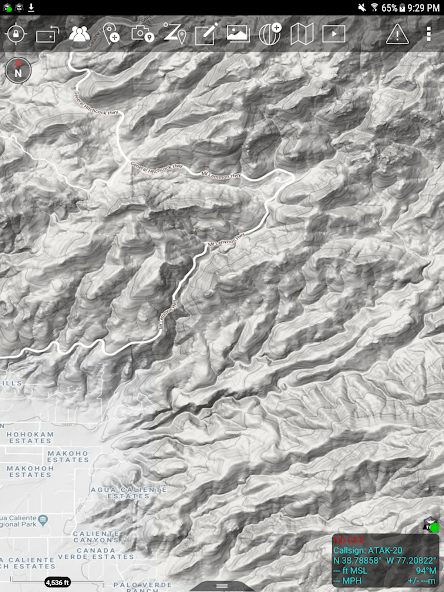
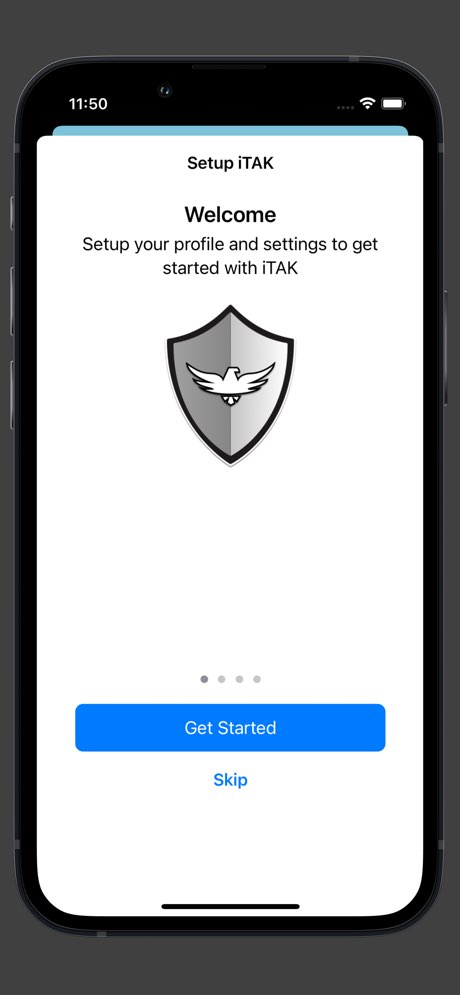
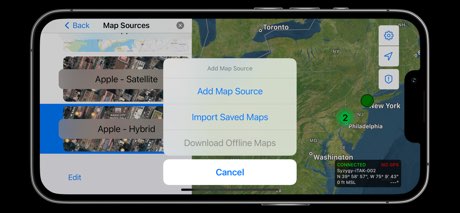
Start with our WinTAK event view, then compare the Android and iPhone examples below. Phone screenshots come from the official store listings. Layouts and available tools vary by platform and version.
Labeled objectives, entry points, parking, registration, and other landmarks give the map useful context.
Map graphics and labels help leaders discuss the same places. Your phone uses its own interface to display the team information shared with it.
This view is WinTAK on Windows. Players use ATAK on Android or iTAK on iPhone; installing WinTAK is not a phone setup step.
Do the easy part
before you arrive.
Choose your phone above. If your app looks different, support can walk you through your version. Do not copy another organization’s server address or credentials from a tutorial. Our team provides your enrollment information.
A few useful guides.
One skill at a time.
Start with the basic screen tour, then learn maps and navigation for your phone. The YouTube lessons below use older ATAK interfaces; COTAK’s walkthroughs provide additional Android and iPhone guidance. Follow our team’s enrollment instructions.
A public-release tour of the main screen and its tools. Older interface: use it for orientation rather than exact current menu positions.
Watch on YouTube ↗ Series sourceAn optional older-interface guide to arranging ATAK tools. Learn the basics first; ask support before changing a team-managed layout.
Watch on YouTube ↗ Lesson sourceGet familiar with the map and common tools, then practice selecting a point and navigating toward it.
Map & tools walkthrough ↗Point Dropper & GoTo ↗Offline maps lesson ↗See the iPhone workflow and learn the map tools. The connection example is for COTAK; use German HQ enrollment details instead.
iTAK first-launch walkthrough ↗iTAK interface & tools ↗iTAK offline maps lesson ↗More YouTube training: ATAK Map · The TAK Syndicate · COTAK. External instructors are independent of GermanHQ. App listings and guide sources checked November 5, 2026.
Find your squad.
Understand the next move.
Center the map on your own position. Check that your GPS position is current before relying on it.
Learn teammate symbols and the markers your leader points out. A visible marker can be old; check its details and freshness.
Practice the navigation tool for your app. A bearing line is not a safe route: respect terrain, boundaries, and referees.
Find the correct team conversation and acknowledge a test message. Use the event’s communication rules after your brief.
Have your lead show you how to create and share a test marker. Keep practice clutter off the event map.
GPS can show your own position without mobile data, but server-based teammate updates, chat, and new markers need connectivity. A DMR voice radio does not automatically carry TAK data. If the map stops updating, follow your squad’s radio and fallback instructions.
Install early.
We’ll help with the rest.
We can help before the event with installing the app, device compatibility, permissions, battery behavior, offline-map preparation, and basic practice. Contact your German-side squad lead or organizer through your existing team channel to arrange assistance. Tell us your phone model, Android/iOS version, app version, and what is not working.
Personal preparation checklist only. These ticks are not sent to the team or saved when you reload.
Installing the app does not enroll you on our network. You need the personal connection information issued by German HQ, working connectivity, and a successful connection check.
This public guide does not distribute the team’s map packages or enrollment files. Support will provide the private distribution instructions when the approved package is ready. Ask early so you can download it before travelling.
Do not trigger a live emergency alert as practice. Ask staff for a supervised demonstration. For a real injury at the event, alert a field referee immediately and follow the event’s safety process; TAK supplements that process.
Keep team credentials, live player positions, and event plans private. Use these public store screenshots when showing friends what the app looks like.